

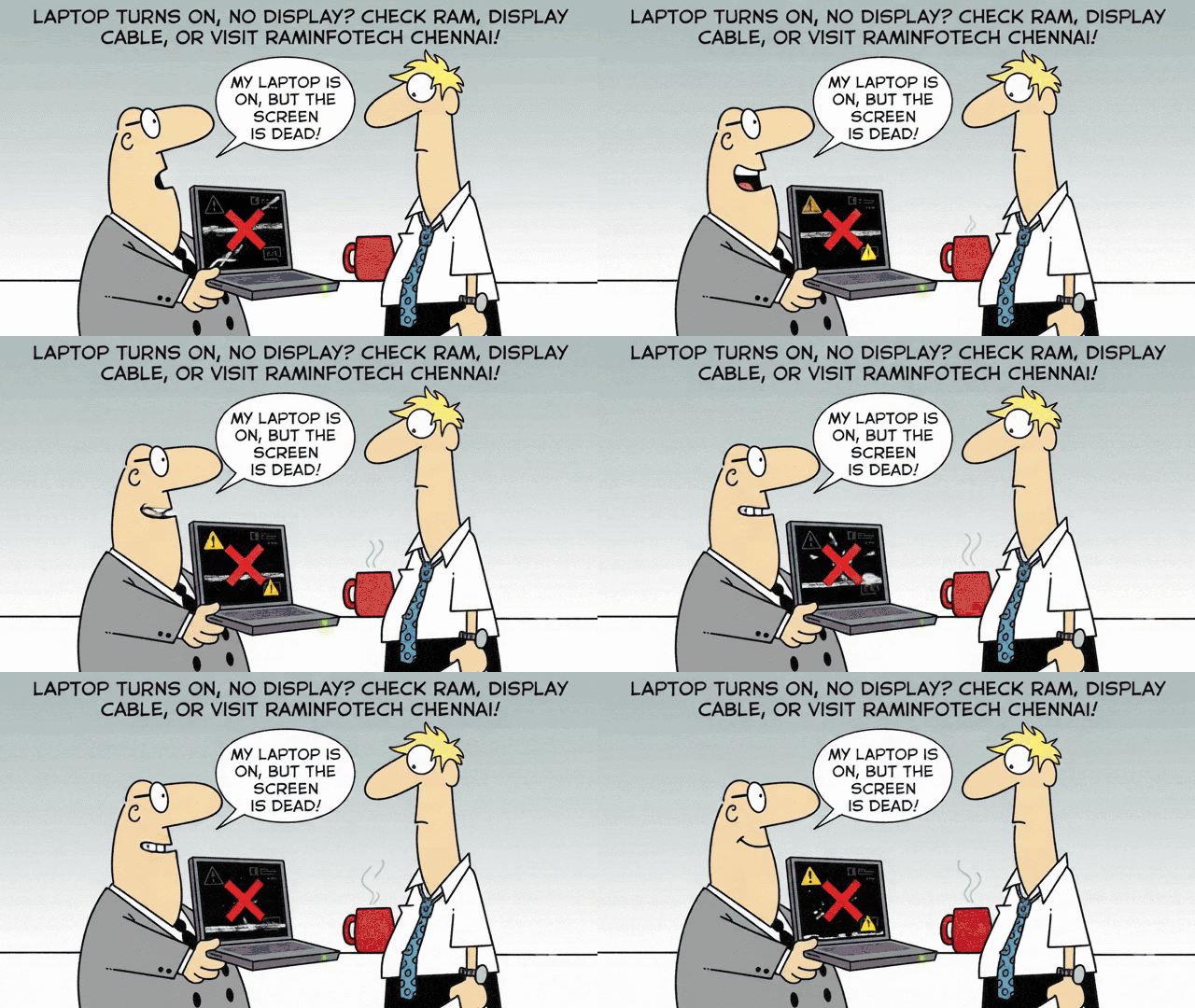
Laptop Turns On But No Display? 6 Common Causes & Quick Fixes

Pressing your laptop’s power button and seeing the keyboard lights or cooling fan turn on—only to be greeted by a completely black screen—is one of the most frustrating issues any user can face. When a laptop powers on with no display, the problem can range from a simple static power glitch to an internal RAM, display cable, or motherboard chip failure.
Before worrying about major hardware damage, here are 6 common causes and quick troubleshooting steps to diagnose a black screen issue:
Residual Static Charge in the Motherboard Sometimes, built-up electrical static prevents the laptop’s display circuit from initializing properly during startup.Fix: Unplug the charger and disconnect all USB devices. Press and hold the power button down for 20 to 30 seconds to drain residual power, plug the charger back in, and turn the laptop on.Loose or Faulty RAM Module If your laptop’s RAM (memory) stick has become slightly loose due to accidental bumps or dust accumulation in the slot, the system will power on without sending a video signal to the screen.Fix: If your laptop has an accessible bottom memory panel, carefully remove the RAM module, clean the gold contacts gently with a dry microfiber cloth, and re-insert it firmly.Display Output Switched to an External Monitor Accidentally pressing display projection shortcuts (Windows Key + P or Fn + F4/F8 depending on the brand) can switch the video output away from the built-in laptop screen.Fix: Press Windows Key + Ctrl + Shift + B to reset the graphics driver, or connect an external monitor/TV via HDMI to check if the laptop boots normally on an external display.Dim Backlight or Failed LCD Inverter / Panel Shine a bright flashlight closely at the dark laptop screen while it is powered on. If you can faintly see your desktop icons or login screen in the background, the LCD panel is producing an image, but the screen backlight circuit has failed.Damaged Display Ribbon Cable (eDP / LVDS) Frequent opening and closing of the laptop lid—especially when hinges are stiff—can wear out or loosen the thin display ribbon cable running between the motherboard and the screen.Graphics Chip (GPU) or BIOS Corruption Overheating over long periods can damage the onboard graphics processor or corrupt the BIOS firmware, resulting in a black screen with blinking Caps Lock or Num Lock diagnostic LEDs.Professional Laptop No Display Repair in Chennai If your laptop still shows a black screen after performing a hard reset and external monitor check, opening the chassis without proper diagnostic tools can risk short-circuiting the motherboard.
For accurate chip-level diagnostics, RAM and display cable testing, and genuine laptop screen and motherboard repair in Chennai, visit Raminfotech Laptop Service for reliable troubleshooting across Dell, HP, Lenovo, Asus, Acer, Apple MacBook, and all major laptop brands.
Website: https://www.raminfotechlaptopservice.in/ ↗
Connect with Raminfotech Laptop Service:
Facebook: https://www.facebook.com/RamInfotech/ ↗Instagram: https://www.instagram.com/raminfotechlaptopservicecenter/ ↗X (Twitter): https://x.com/raminfotechmd ↗YouTube: https://www.youtube.com/@raminfotechlaptopservice547/videos ↗LinkedIn: https://www.linkedin.com/company/ram-infotech-laptop-service-center/posts/?feedView=all ↗Pinterest: https://in.pinterest.com/raminfotechlaptopservices/ ↗Short Summary (358 characters — For Strict Character-Limit Sites): Laptop powers on with lights and fan running, but the screen stays black? Common causes include static buildup, loose RAM, faulty display cables, or GPU/BIOS issues. Try a 30-second power reset and test with an external monitor first. For expert laptop no-display and motherboard repair in Chennai, visit Raminfotech Laptop Service: https://www.raminfotechlaptopservice.in/ ↗